One useful feature of Teams meetings is the ability to record and/or transcribe the meeting so you have a record of what was said, which AI can analyze to provide a summary and list of action items. This feature is accessed from the Teams meeting ribbon bar (after joining the meeting) under More --> Record and transcribe as shown below. From there, you can start and stop the meeting recording and transcription process. Other occasional use cases that can be accomplished in Teams:
- You may need to send a video grab to a vendor showing them an issue you are experiencing.
- You may wish to create a video tutorial to share with others.
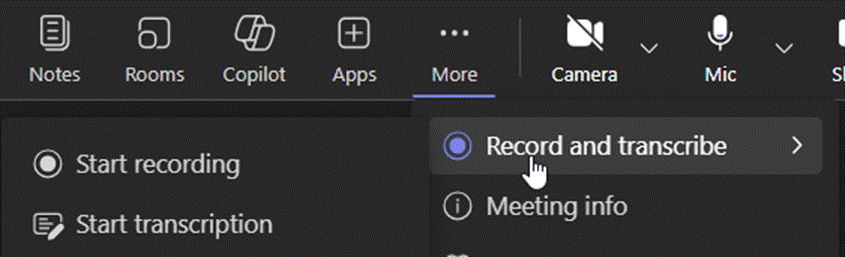
Please note that you cannot record impromptu Teams calls, but you can follow the steps below to "Meet Now" and create a meeting that is recordable, and invite any participants as you wish.
As of April 2026, meeting recordings will be available for 16 months in accordance with our Microsoft Outlook & Teams retention policy. The expiration date on any older recordings (for meetings before April 2026) can be manually adjusted in the individual file:
- Open the recording in OneDrive or SharePoint
- File settings → change expiration date
Important Notes to Consider
- A Teams recording captures video, audio and screen sharing. Transcription converts speech into text for reading and searching later, without having to watch or listen to the video recording.
- Proper Etiquette: For both recording and transcribing, a meeting host's standard practice should be to announce your intent at the beginning of the meeting by verbally stating, "I am going to record this meeting." Be respectful of any attendee's request to not have a meeting recorded or transcribed.
- When the recording and/or transcription begins, all participants will see a pop-up message to alert them of the recording/transcription being started.
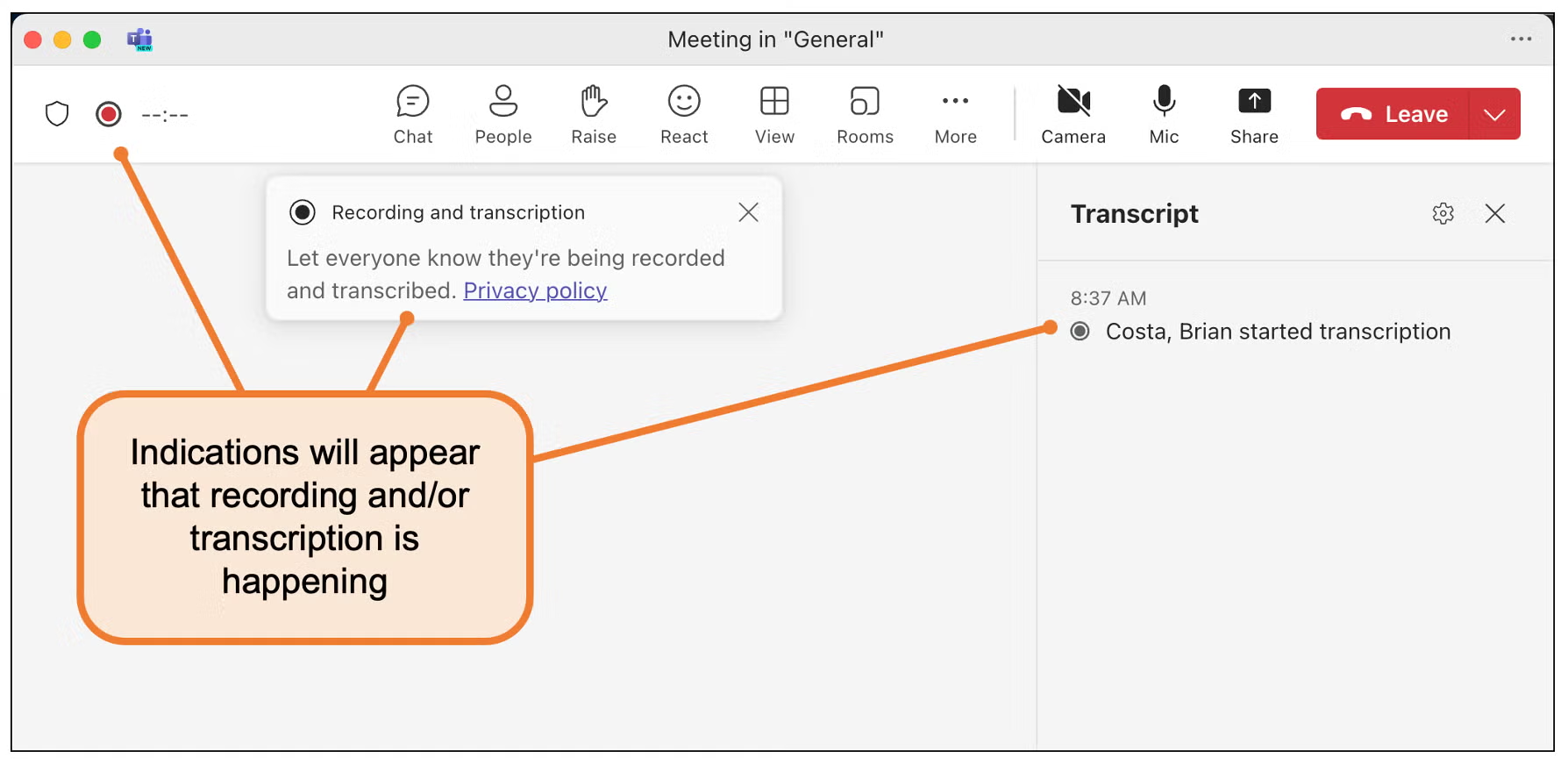
- Anyone attending the meeting can start or stop the meeting recording/transcription at any time, which would also be announced to all participants by a pop-up message.
- Where/How to Access: After the meeting concludes and all participants have left, all attendees will have access to the recording/transcription, which is saved in the meeting's Chat section in Teams. A recording may be published later by the meeting organizer in another location, such as the Root intranet site.
- When Not to Record/Transcribe: While it is safe to record and transcribe most meetings, per Compliance, some meetings like official bank Committee meetings should not be recorded or transcribed. That Committee's formal meeting minutes will serve as the record for that meeting.
- Accuracy: Meeting transcriptions are subject to errors. It is the responsibility of the meeting organizer to review it for accuracy after the meeting concludes.
To create a recording
- Open Microsoft Teams
- To create a recording without a scheduled meeting, go to your Calendar in Teams:

- ...then click on the Meet now button:

- Join the meeting by clicking on Join now (if using the web app you may be asked to allow your browser to use your camera and microphone)

- Turn the camera on if you want to record yourself:

- Make sure the microphone is on to record your voice:

- When you move your cursor over the screen, a meeting menu bar will appear at the bottom of the screen:

- Click the More actions button (looks like three dots).
- From the drop-down menu, select Record and transcribe --> Start recording.

You can also start transcription in the same menu:
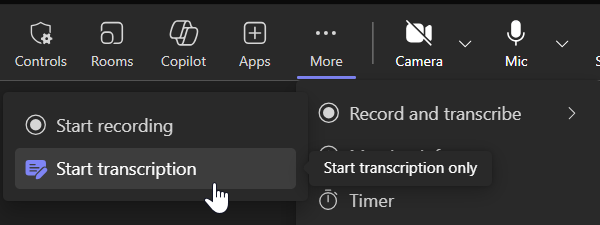
- A Privacy Policy notice will display.

- Share your PowerPoint slides, documents etc. in the Teams meeting using the Share button.

- When you use share you can
- Share your desktop – anything that shows on your desktop will appear in the recording.
- Share a window – simply select the one you want to display from the windows tiled along the bottom of your screen.
- Share a PowerPoint presentation – your most recent files will be tiled at the bottom of the screen or you can click on ‘Browse’ to locate the file.
- Share Microsoft Whiteboard at the bottom of the screen – you can use the whiteboard tools to draw on the screen and your actions will be recorded.
- When you have finished your recording, click on the More actions button (looks like three dots) again.
- Select Stop recording.

- The recording will now end and will be saved in Microsoft Stream.
- You can now leave the meeting by hanging up the phone – click on the Red phone icon.
- You will receive an email when the content is ready to stream. The recording link will be accessible to all meeting participants in the meeting chat in Teams.
Source: https://sites.reading.ac.uk/tel-support/2020/04/03/ms-teams-making-a-recording/
Was this article helpful?
That’s Great!
Thank you for your feedback
Sorry! We couldn't be helpful
Thank you for your feedback
Feedback sent
We appreciate your effort and will try to fix the article