HR will inform IT and the hiring manager via email when a candidate has accepted the offer for an open position. When a new hire's supervisor submits a User Add Form (hopefully at least a week in advance), the IT Service Desk may proceed with setting up the new user. Verify that the user name listed in the User Add Form matches the name as listed in HR's notification email and inquire about any inconsistencies. All users are added to the two main systems below by the IT Service Desk.
This procedure may be followed for User Changes as well. Review each section below to confirm if it is applicable to the particular employee change and assign access accordingly. See other KB articles for user changes between companies and user name changes.
Active Directory (AD)
In AD, create a new user. If the Add Form lists an "existing user" to model after, you may search that existing user in AD, then right-click and Copy*.
Enter user's name and a temporary password (usually Pa$$word and the start date, e.g. Pa$$word01012020).
If the user name already exists, contact HR and ask for the new hire's middle initial (e.g. jsmith vs. jcsmith).
Ensure the box to have user "change password at next login" is checked. (AFTER the employee starts and sets their own password, check the "Password never expires" box; effective 1/20/26, passwords will no longer expire.)
Type the new hire's employee ID # into the Description and Web Page fields. (If a contractor, just enter "Contractor.")
**Add phone extension and full phone number into the Telephone number field. (This is a required field so that the user will appear in the intranet directory. See second bullet below under "Next Steps" for more info on this.)
Float staff: Simply put "See Float Schedule."
Under the Account tab:
- Under User Logon Name, make sure the dropdown is set to the UPN for the specific company he/she will be working for (i.e. if FMHC, should be @firstmutualholding.com, not @ffl.net). If it does not appear as an option in the dropdown list, manually add it to the UserPrincipalName attribute under the Attribute Editor tab.
- Under Account Options, check the "This account supports Kerberos AES 256-bit encryption" box.
Under the Organization tab, verify the Job Title, Department, and Manager fields (consult the Paylocity org chart to confirm the correct info).
In the Attribute Editor tab, go to ProxyAddresses and add a record for SMTP:(email address) (and smtp:(email address) for any alias, if necessary)
Go to TargetAddress and add SMTP:(username)@FMHC.onmicrosoft.com
For returning employees, locate the user in the Former Employees OU. Right-click and Enable. Right-click and Move to the correct folder. Also, restore their contact in Freshdesk so that their tickets do not get marked as Spam.
Add access groups as required in the Member Of tab.
For FFL branch employees:
- Universal Banker 1 should be assigned to the Dynacore-Teller group.
- Universal Banker 2 should be assigned to the Dynacore-Head Teller group.
- Universal Banker 3 should be assigned to the Dynacore-Financial Counselor group.
If mirroring an existing employee, make sure the new employee is removed from the following groups:
- Adobe Acrobat DC Standard Users group, unless specifically requested by the manager.
- SP (Page) Members group for Sharepoint admin access, unless specifically requested by the manager.
- (company) Managers & Supervisors group, unless the new hire themselves is a manager/supervisor with direct reports.
Microsoft Office 365 (for email/Teams/etc.)
Once user is added, Office 365 will sync with Active Directory and the user will appear in the O365 Admin portal. There, the appropriate Microsoft license (usually E3) will be assigned and a mailbox will be created for the user.
- Search user's name, verify E3 is selected
Add user to any shared mailboxes needed (e.g. for retail/branch employees, add to the appropriate Appointment and Fax mailboxes).
- Teams & groups --> Shared mailboxes --> search for appropriate box --> click in and open Members --> add user
In Outlook, add the new user to the invite for each of the eleven bank holidays listed on the FMHC Holiday Calendar.
Log into OWA as the new user account and make sure the default time zone is set to Eastern time (or the time zone where the employee will be working). Microsoft has lately been defaulting this to Pacific.
In OWA: Settings > General > Language and Time
Next Steps
- Document all steps you completed in a private note in the User Add ticket.
- **If applicable: Assign the user an internal phone extension and note the extension, full phone number/DID, and voicemail PIN on the new hire's password sheet.
- Universal Bankers and other branch staff generally do not get a specific extension assigned to them. Branch staff should have their branch's main extension and full phone number listed in their AD profile. CRC agents do NOT get assigned an extension in AT&T Office@Hand. They are only to use their call center platform (Five9) for making and receiving calls. Simply put the main CRC phone number (216-529-2700) in their AD profile.
- Default Temp PIN: 753638; Setting a temporary password to log into AT&T Office@Hand is no longer needed as all new users are set up with SSO.
- Ensure that the extension is NOT forwarding to another employee under Call Handling, and that all greetings and voicemail recordings are reset to the default.
- Check the User Add Form for other applications the supervisor has requested for their new employee (e.g. Cleartouch, WireXchange, CoreTrac/CRM, etc.). IT can set up some of these, but other teams might need to get involved (see below).
- Wait to set up Cleartouch until close to the user's start date, as the password can expire in a short time. Make sure to also set up the new CT user in Passport, the security side of CT.
- Passport requires use of the user's Employee ID # from HR. If they are a contractor and do not have an assigned Employee ID #, you could use their manager's employee ID # and add a 1 to the end of it to keep it unique.
- For all branch staff who handle transactions, make sure the "Mandatory Cash Counter" box is checked.
- As of January 2024, new employees at FMB and MFSB who get set up in live Cleartouch should also be set up in the CT training bank (100D) separately. The member bank's CT admin (if one exists) may already set up the user in live CT, so all IT needs to handle is setting up the user in 100D with the same user name and teller number. (As of Feb. 2025, Warsaw & Blue Grass employees use shared/generic login credentials for the training bank.)
- Universal Bankers cannot get WireXchange access until they complete the required training and we receive their completion certificate.
- Wait to set up Cleartouch until close to the user's start date, as the password can expire in a short time. Make sure to also set up the new CT user in Passport, the security side of CT.
- Update the New Employee Passwords Sheet (template attached) with all the credentials you assigned, then upload the PDF to a note in the ticket.
- Assign the User Add ticket to other teams as necessary, depending on the access the supervisor has requested:
- For CoreTrac/CRM, Encompass, MeridianLink, or Prologue access, assign the ticket to Enterprise Systems
- Prologue access must be approved by Chris Miller in Accounting as we are limited on licenses. In branches, only managers get Prologue access, not assistant managers or lower roles.
- For CoreTrac/CRM, put a note in the ticket with the new user's employee ID # and CT teller # for the Enterprise Systems team
- For member bank Cleartouch or DocuSign access, assign the ticket to the Core Banking Systems queue.
- For Q2 Console access, assign the ticket to the AlloBaaS Digital Banking queue.
- For Data Warehouse or Cognos access, assign the ticket to the AlloBaaS Data/Reporting queue.
- For Five9, send an email to Joe Walker in the CRC with the new user's employee ID # and CT teller #
- For CoreTrac/CRM, Encompass, MeridianLink, or Prologue access, assign the ticket to Enterprise Systems
- For branch employees: Remote into the branch's scanner(s) and add the new user's email address to the Address Book.
- Open the Printer List, find the main branch printer and copy/paste the IP address into a web browser
- Log into the printer using the Ricoh/MFP credentials in KeePass --> Device Management --> Address Book --> Add User --> add full name in "Name" and "Key Display" field, add email in Email Address field. OK to save.
- Verify the user is appearing in Duo and set them to Bypass mode so they can get logged in on their first day. As of March 2025, the Duo enrollment link email should automatically be sent to them as soon as their user syncs in Duo after they are set up on the network. They can enroll after we set them back to Active mode that morning.
Once the New Employee Passwords Sheet is completely filled out:
- Send a copy to the hiring manager/supervisor by Thursday of the preceding week so the new hire has all their login credentials for Day 1. Universal Bankers: Send a copy to their training coach and the Retail Operations group so the trainers who will be working with the new hire are in the loop. Retail Ops will also contact the necessary admins of other "Retail Access" systems listed near the bottom of the User Add form to get the new employee set up there as well (including but not limited to: Harland, Brand Hub, Web Capture, JP Morgan, Independence Business Supply, FedEx, Fiserv Instant Issue Supplies, and Medallion Signature Guarantee).
- Remind branch managers that they need to submit a ticket for each branch where the UB will need teller #s assigned
- Verify the user is appearing in the intranet employee directory with all information listed
- Email the new hire with instructions on enrolling in ADSSP (the Windows self-unlock tool)
- Assign the User Add ticket to Information Security/Jon Densmore (or Nick DeRusso, in Jon's absence) for the Access Auditor review to be completed by the hiring manager (do NOT close the ticket)
Troubleshooting
*Occasionally, when copying an existing AD user to create a new one, you might encounter the following error message:
"Windows cannot create the object because: The name reference is invalid."
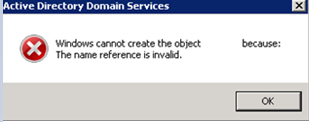
To resolve, you might need to manually go into the user's AD profile and clear out the ShowinAddressBook attribute under Attribute Editor.
Source: https://www.heelpbook.net/2015/active-directory-object-username-error-the-name-reference-is-invalid/
Was this article helpful?
That’s Great!
Thank you for your feedback
Sorry! We couldn't be helpful
Thank you for your feedback
Feedback sent
We appreciate your effort and will try to fix the article