As of October 2022, we now have centralized Adobe licensing to replace those who have older versions of Adobe (2015, 2017, et al) and for new requests for back office employees. As of 2023, we have 130 licenses total. Please note that these licenses are NOT to be used for branch employees*. To get a user set up, follow the steps below.
1. Add user to the "Adobe Acrobat Standard DC Users" group in AD. This will sync up directly with the Adobe portal and assign a license to the user.
2. After the sync occurs, within an hour or so, the user will receive a Welcome email from Adobe with a link to Get Started, where they can download the installer for Adobe Standard. The user may simply disregard this email, as we already have the installer downloaded (it's over 1 GB in size).
3. While the licensing sync is taking place, copy the installer zip folder over to the user's machine from G:\IT\Apps\Adobe Acrobat & Licensing\Adobe Acrobat Standard DC October 2022.
4. Uninstall any older version of Adobe Acrobat or Reader, then run the installer - see Adobe's install steps below:
- Download the zip file and copy it to any folder on your computer.
- Extract the zip file.
- Navigate to the Setup.exe file.
For example, if you have copied and extracted the zip file to the "Adobe" folder on your desktop, the folder hierarchy will be: C:\Users\<user name>\Desktop\Adobe\Acrobat_DC_Web_WWMUI\Adobe Acrobat\Setup.exe - To start the installation, double-click the Setup.exe file.
- Follow the instructions on the screen to complete the installation.
5. Once installed, have the user open Adobe and test. They will need to log into their account with their work email address to license the software. After entering their email address, they should select Company or School Account, (not personal) then it will welcome them to Adobe. Should not need to enter a password. (If it asks them for a password, then they went too far. they need to backtrack and select Company or School Account.)
Using the QR code provided in the sign in prompt might not work use the link instead.
*Branch computers: Ideally, if you are replacing a desktop in a branch, the new desktop should have the exact same applications on it as the old one had. This includes any version of Adobe Acrobat - keep the same application and the same license in place. Branch employees should NOT be in the AD group listed above.
All branch PCs we set up, even if they NEED Adobe Acrobat, should get a PC-specific license. As of January 2024, we have several spare Acrobat 2020 licenses that can be used for new branch requests (G:\IT\Apps\Adobe Acrobat & Licensing\Acrobat 2020).
If the old desktop did not have Acrobat, just make sure Adobe Reader is installed, along with CutePDF Writer. We can deal with any new requests for Adobe Acrobat as they come in from branch managers.
Sometime users may get the below error when trying to create/edit/print to pdf via Adobe. The fix is going to Close Adobe completely > Go to Task Manager > Find Adobe License Manager > End Task > Restart Adobe.
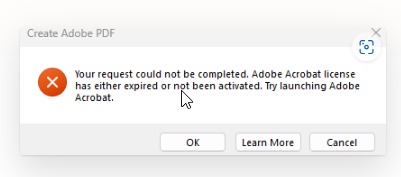
Everything should work after that. If not the following article lays out further troubleshooting steps: Adobe Acrobat license has either expired or not been activated | Adobe Acrobat
Was this article helpful?
That’s Great!
Thank you for your feedback
Sorry! We couldn't be helpful
Thank you for your feedback
Feedback sent
We appreciate your effort and will try to fix the article