Occasionally, you may need to research what shared mailboxes, if any, a specific employee is a member of. To do this, follow the steps below.
Note: You no longer need to RDP into WLKWEXMMXVI, as that no longer exists. We do not have an Exchange server anymore.
If these steps do not work on your own computer, the Exchange Online module is already installed and functional on WCLEDC1, as of April 2026.
- In the Start menu on your computer, search for Windows Powershell --> Open File Location --> right-click and Run as different user (enter your DAA credentials - will not work with your regular credentials)
- Type in: Connect-ExchangeOnline and hit Enter (*see below if you get an error message)
- When prompted, log in with your GA (O365 admin) account
- Once the command line reappears, you will be connected to our tenant inside Exchange. This may take a minute - you should see the progress of the connection at the top of the window.
- Copy/paste in the command you want to use (example below)
For looking up the shared mailboxes a user is in:
Get-Mailbox -ResultSize Unlimited -RecipientTypeDetails SharedMailbox | Get-MailboxPermission -User "John Smith" | ft User,Identity,AccessRights
(replace John Smith with the name of the employee you want to search)
6. Hit Enter and the list of shared mailboxes will populate. If the user is not a member of any shared mailboxes, no results will be listed and you will simply see the command line re-appear when the search is complete.
Note: You can replace "SharedMailbox" with other parameters. See this link for more details and a list of valid values: List all mailboxes user has access to with PowerShell - ALI TAJRAN
*In Step 2, if you receive the following error message:
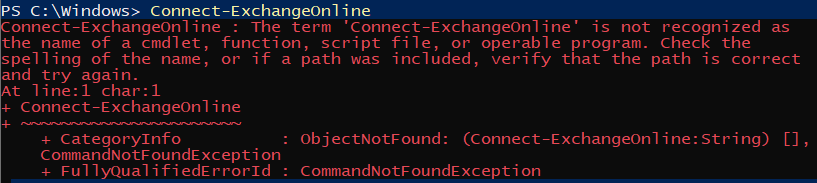
You will first need to install the Exchange Online Management module by entering this command: Install-Module -Name ExchangeOnlineManagement -Scope CurrentUser
Answer "Y" then "A" at the next prompts. Then, you should be able to proceed with step 2 and enter the Connect-ExchangeOnline command.
After the installation completes, you need to import the module: Import-Module ExchangeOnlineManagement
Was this article helpful?
That’s Great!
Thank you for your feedback
Sorry! We couldn't be helpful
Thank you for your feedback
Feedback sent
We appreciate your effort and will try to fix the article