On occasion, a conference room (such as the Executive Board Room or the Magnolia Teams Room - in the FMHC CIO's office as of July 2024) may need to be restricted to only specific employees who are allowed to schedule meetings in that room.
1. Resource Scheduling Settings
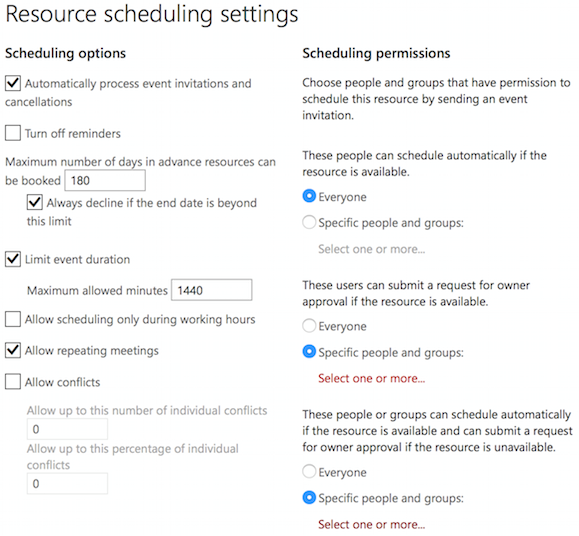
There may be an alternative method of restricting this access via a PowerShell script. Example (after connecting to ExchangeOnline in PowerShell):
$group = "Magnolia Conference Room Booking Allowed"
Set-CalendarProcessing -Identity "Teams Rm. - Magnolia" -AutomateProcessing AutoAccept -BookInPolicy $group.Identity -AllBookInPolicy $false
Source - Example 7 here: https://learn.microsoft.com/en-us/powershell/module/exchange/set-calendarprocessing?view=exchange-ps#example-6
Was this article helpful?
That’s Great!
Thank you for your feedback
Sorry! We couldn't be helpful
Thank you for your feedback
Feedback sent
We appreciate your effort and will try to fix the article