Will continue adding details here on the Office@Hand (O@H) admin site as we learn more about it.
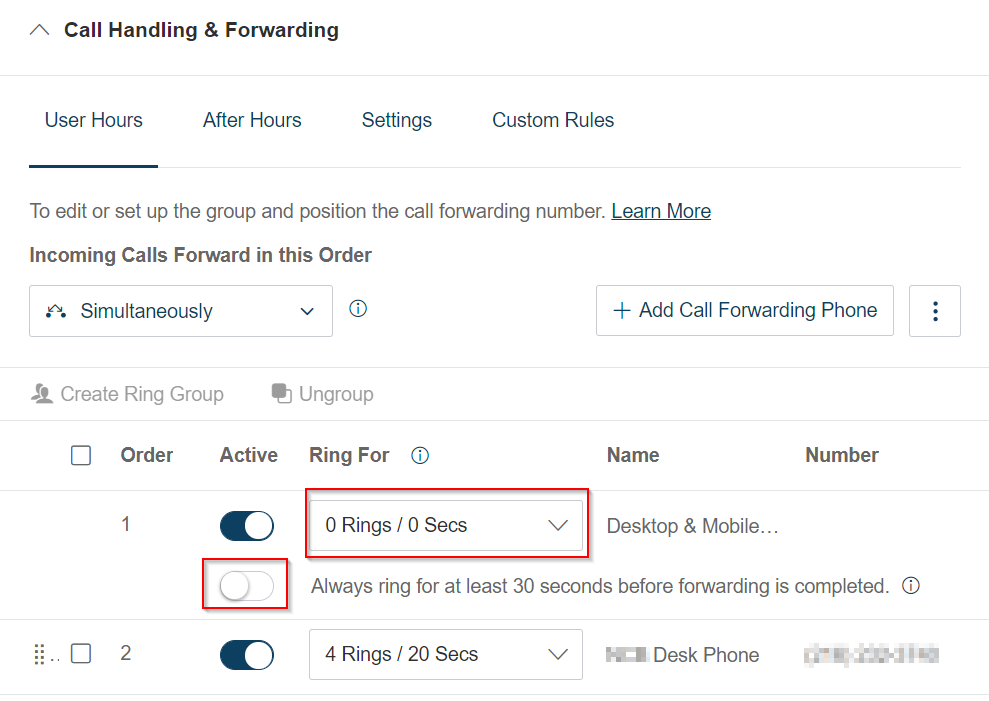
By default, when you receive a phone call, AT&T will ring the Office@Hand apps (desktop and mobile apps) first before ringing your desk phone. If you would like your desk phone to ring first and prevent a delay, set the softphone app to 0 rings in the admin portal. The softphone app is set to at least one ring so that it can feed to a CRM first if necessary (not something we use currently).
ENABLING A DESK PHONE WITHOUT ACTIVATION:
A user's desk phone will not function until the user has been Activated. If the user's status is "Not Activated," their desk phone may not be working. If the phone is actually assigned to an employee, you can Send Invite and they can log into their AT&T account within 24 hours to Activate themselves.
If the desk phone is not assigned to a specific user (i.e. a conference room phone or spare teller line phones, or a phone for a new employee who has not started yet), you can still Enable it:
Under Users --> Users with Extensions, check the box next to the user's name (should have a red 'X' if they are Disabled), then click Enable at the top of the list. You may first need to set up a temporary password, PIN and security question.
Default password: Phones2021!
Default PIN: 753638
Default Security Question: City born (use the location of the desk phone)
LIMITED EXTENSIONS: Shared/multipurpose phones that are not assigned to a specific user can be set up as limited extensions, which are less expensive than regular user extensions. Limited extensions do not have the same functionality as full user extensions. Specifically, among other missing features, they:
- do not support text messaging
- can not be used as a conference bridge
- do not have a voicemail box
- can not be a member of a call queue
Examples of limited extensions: Conference/board room phones, customer/visitor lobby phones, common area phones, other back room phones (copy room, mail room, vault room, server room, etc.)
Unlike user extensions, there is no "Enable All" option when attempting to enable multiple limited extensions at once. However, since there are no voicemail capabilities or other special call handling functionality on limited extensions, there should not be a need to activate them or to put in a password. A limited extension desk phone will still work properly without being activated as long as the device is tied to that limited extension.
Call queues and other extensions will also still work even when they are not activated.
CALL QUEUE MANAGEMENT: Any employee can be designated as a call queue's "manager," allowing them to add/remove members of the call queue on their own and change certain queue settings. For example, the System Support Specialist at First Mutual Bank has access to manage all seven FMB call queues and maintain membership on their own.
To prevent any conflicts, AT&T recommends that each call queue manager log in with the call queue's phone number, NOT their email address. If they log in with their email address, it will take them to their personal O@H extension/account settings, not the call queue's.
If the call queue does not have a DID, then the manager can log in with FMHC's main number (844-724-3642) and then enter the call queue's four-digit extension, before being prompted to enter the call queue's password.
Branch managers are set as the "manager" of their branch's call queue (in the AT&T admin site: Phone System --> Groups --> Call Queues --> click on the branch queue --> under Call Queue Details, Manager email address field). Additionally, they are set separately to receive text message alerts and other notifications. Under the specific call queue, Voicemail and Notifications section --> Settings --> Notifications --> Edit button.
HOT DESK PHONES: A specific subset of limited extensions is called "hot desk" phones. These are desk phones that are shared by different users at "hoteling" desks. As of January 2022, the default hot desk phone logout time is 24 hours, so it will always automatically log out the last user if they forgot to log out manually.
Users can log into their extension on the phone by pressing the Login button on the screen, or by calling *90. They will be prompted to enter your extension number and PIN. Pressing the Logout button on the screen, or calling *91, will manually log them out.
Important: To set up a Hot Desk phone, it must first be provisioned on AT&T as a standard user phone (stupid, I know). You can use the Admin account (x7998) to provision a new phone as a user phone first. Then, follow these steps to un-assign it and convert it to a Hot Desk phone: https://support.ringcentral.com/article/11334-Hot-Desking-Convert-an-Assigned-phone-to-a-Common-Phone.html
ORDERING NEW PHONES:
See attached special pricing on phones - we have deep discounts on a few select models. We should choose these discounted models when ordering new phones. Although the O@H portal will always show the regular list price, it is still safe to order as the discount for service & equipment will be a credit applied to our bill against the retail costs.
To order a phone to be shipped directly to a location aside from Lakewood HQ, contact our O@H specialist (chase.hormel@ringcentral.com) to place the order.
OR, to try ordering from the portal on your own (from our rep):
"When adding a user, you will need to select the cost center for the location these phones will be getting shipped to. If you are shipping phones to a location that is not tied to the cost center, you would need to create a new cost center with the tax location being the place you are shipping the phone. Then you go back to add a user/phone, you will need to select the cost center of where these phones will get shipped to as that will be the location that will be filled in. I am not a fan of how you have to create a cost center for every location you are shipping phones to but unfortunately that is how this Cost Center solution works."
If the user was already set up under FMHC, you will not be able to ship the phone to a location other than Lakewood HQ.
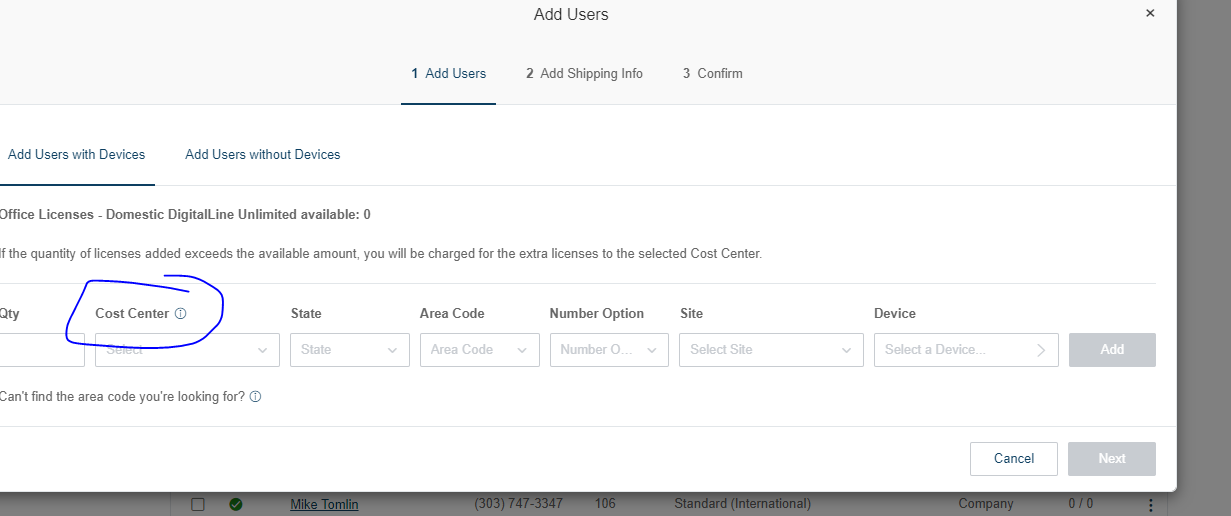

For remote users that currently have an "Existing Phone" assigned to them (to provision a physical desk phone), you can change "Existing Phone" to the O@H Desktop App. Go to Phone System --> Phones & Devices --> User Phones --> find the user --> click the Change Phone button to switch to the desktop app.
A few helpful steps from the move of FFL/FMHC/FMB to the new phone system:
1. Set up Cost Center for the specific affiliate (add Child Cost Centers for specific branches, if needed, to ship out new phones directly to a specific location)
2. Bulk-add individual users (get total user/phone count) vs. limited extensions
a. Select "Existing Device" for existing Polycom desk phones, or just "Office@Hand Desktop" for remote employees
NOTE: If you add too many users and need to remove some, unassigned user extensions can only be deleted one at a time. They can also sit in inventory for future use.
3. Enable without activation: Unassigned Extensions --> check all boxes --> Enable All (need to set password, PIN, and security answer first)
a. Do Step 2 first (enter your email address to receive template, fill out spreadsheet with user details, including the extension number, even though that section is greyed out)
b. Step 1, then Step 4
- Note: After the upload of the spreadsheet, you will receive an Excel sheet with any errors that occurred and changes that could not be made (i.e. if a duplicate extension exists, if there is a unique email ID, etc.)
c. Activate by assigning credentials (Default pwd: Phones2021! Default PIN: 753638 Default ?: City born, put the bank's HQ city)
Note: If you activate by sending an invite email, the user only has 24 hours to click the link before it expires. A new welcome email would need to be sent under User Details in that user's profile.
(OLD - no longer need to do Step 4, as you can set the extension numbers in #3a
4. After bulk add, to change/set specific extension numbers
a. Option 1: Go into each unassigned extension and change extension number (if a lot, this can take a while)
b. Option 2: Make "Assigned," then select the three vertical dots icon --> Edit User Info --> Download Spreadsheet, edit details, then upload to portal to overwrite info)
Sometimes, an employee will move to a different affiliate bank or to/from the holding company. Per AT&T, you can not move users between cost centers in the O@H portal. To move them to a different cost center, you would need to delete the user and re-create them.
However, you can still move a user to a different site without having to delete and re-create their account. Sites (different than cost centers) can be used so we can see which users are assigned to which site. Only the cost center/billing part the user was initially assigned to cannot be changed. Cost centers are used for billing purposes - not in the actual invoicing, as there is still only one big AT&T invoice, but the cost centers are a useful breakdown to show what costs are incurred by location.
Sometimes, employees within a department will switch cubes and need their extensions switched. The easiest method may simply be to have the users move the physical phone with them to their new cube, as their extension and phone number is already configured on that phone.
Alternatively, you can follow the steps below in the Admin Portal to swap the extensions without the users needing to move the hardware:
Go to Phone System --> Phones & Devices --> User Phones and select one of the users. Make note of this phone's MAC address if needed for later.
Click Change Phone and pick "Inventory Phone" to select the other phone that the user is going to start using at their new desk. Make sure you re-name this new phone to be "John Smith Existing Phone" so it does not have the former user's name tied to it.
The user's original phone will then be put into inventory (unassigned devices). Select the second user involved in the switch and repeat this same process (Change Phone --> Inventory Phone, and you can find it by name or MAC address).
In the O@H admin portal, navigate to Users --> Users with Extensions --> select a user --> User Details --> Change Password button --> enter your login password --> there should be a tab to change the PIN.
The best way to do this is from an IVR menu option. You can create a key press assignment where the action is an external transfer and then you type in the non O@H number to transfer the call to. You could do this by using up a user license as well the call handling/forwarding section of the user and have it go to an external number. You can also put this in a call queue under call handling section and wait settings, you can choose when the queue is full or if the maximum caller wait time in queue was reached, you can have calls go to an external number.
To find the IP address of a phone, we will need to use our internal network software (i.e. Lansweeper or DHCP). Easier route will be Lansweeper. Find the phone's MAC address in the AT&T O@H portal, then search for it in Lansweeper using this format: polycom_[MAC] e.g. polycom_64167f96bda9
Lansweeper will tell you the IP address if it is online or was seen recently. You can also look it up the hard way in DHCP using the MAC address.
Then, access the phone in a web browser using https://[IP address], e.g. https://172.16.172.30. You can log in as Admin with the default password 789 (AT&T changes it to 789 from the Polycom default 456).
Every AT&T Office@Hand user is set up to be able to send faxes right from their email in Outlook (see details here: https://fmhc.freshdesk.com/a/solutions/articles/47000953666) or from the scanner in their branch/department (see details here: https://fmhc.freshdesk.com/a/solutions/articles/47000953538).
When sending a fax internally, i.e. from one internal employee/department to another (rare), the recipient may see the fax sender name appear as the name of our primary Super Admin in the AT&T admin portal (e.g. Brian Straka). Per O@H support as of March 2023, this is normal/expected behavior and not something we can change. A feature request has been submitted with AT&T to see if this could be changed to our company name, but for now, we do not have the ability to modify the "From" name on internal faxes. External faxes should appear as our standard caller ID to the recipient.
- As a Super Admin, when attempting to change your own extension settings or another Super Admin's settings, you may encounter the message below:
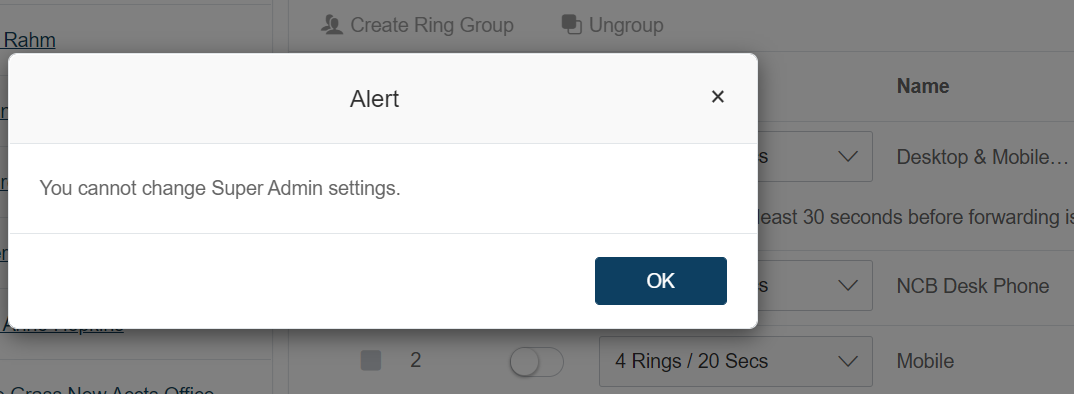
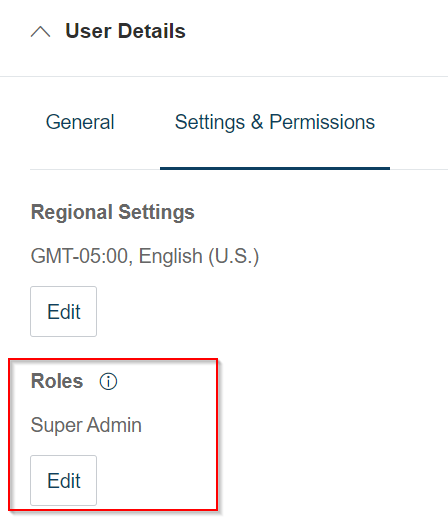
To fix, go to Users --> Users with Extensions --> select your name --> User Details --> Settings & Permissions --> Roles --> Edit --> change to a regular Standard user, Save. Then, another Super Admin will need to set your role back to a Super Admin. You should then be able to change your own and other Super Admins' user account settings.
- As a member of a call queue group, like the IT Service Desk (7000), you may wish to use both the Office@Hand desktop/mobile apps and a physical desk phone when working in the office. With the default settings, the desktop & mobile apps will always ring first, then eventually the call will ring to your desk phone. To force it to ring in both the apps and your phone simultaneously, set the apps to zero rings, keeping the apps line Active, and deactivate the "Always ring for at least 30 seconds" setting, as shown below, then click Save.
- Office@Hand users should NEVER, EVER, EVER enable Forwarding on their Polycom desk phone, ESPECIALLY if they are a member of a call queue (like a branch call queue). When they do this, it will grab any call to that queue and try forwarding it, sometimes successfully, sometimes unsuccessfully. If the extension is getting a "The person you are calling is not online..." error message, see this article: https://support.ringcentral.com/article-v2/Update-to-Error-Message-The-person-you-are-calling-is-not-online-When-Calling-a-Polycom-Phone-RingCentral.html?brand=RC_US&product=RingCentral_MVP&language=en_US
- Users should follow the instructions in our other KB article on call forwarding through Office@Hand extension settings, NOT on their physical Polycom desk phone.
For porting 200 or more numbers, AT&T will handle for us in a project port. If only porting one or a few numbers, we can handle this ourselves in the O@H portal: Phone System --> Phone Numbers --> Transferred and Vanity --> # Transfer Numbers
Default questionnaire responses:
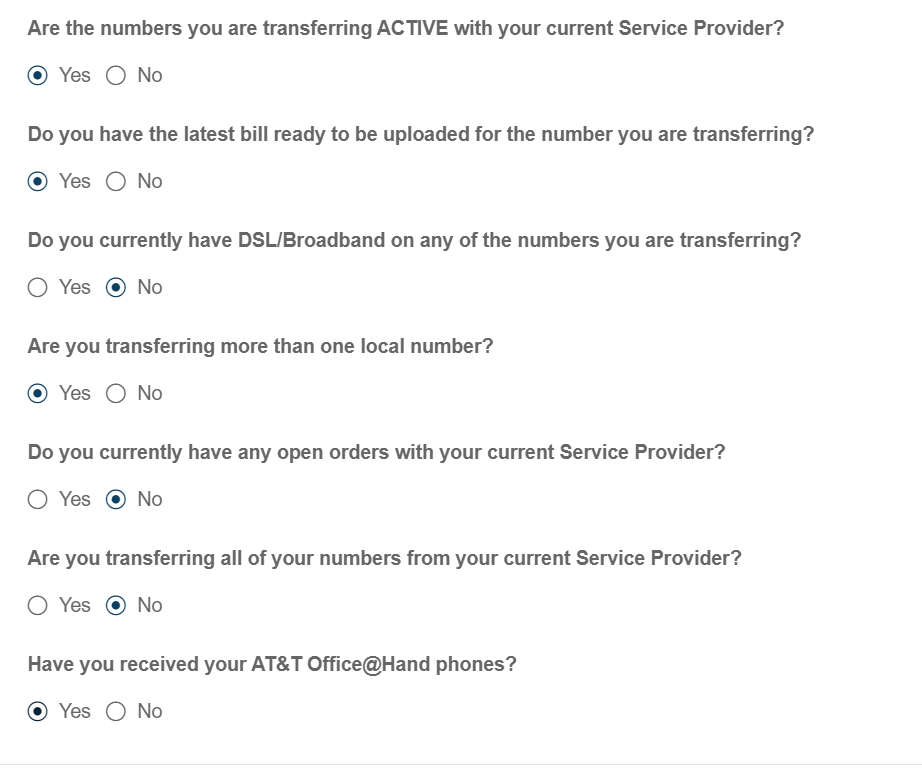
- You may need to port each number individually to prevent errors. List the specific phone number as the Billing Telephone Number (even though it may not be) and check the box to transfer the BTN.
- Toll-free numbers will need to be put through a separate port request.
- You do not need to upload the bill right away - you can go back and upload it after you submit the port request. You may receive email reminders asking you to upload it.
Senior O@H Technical Support (Tier 2): (866) 299-0295 (Nick recommends this number for quick response and effective support. Hopefully you will be connected to Rose or Laura - they are always quite helpful and, if you talk to Rose, you get the pleasure of hearing roosters in the background.)
ASE Care: (866) 563-4703
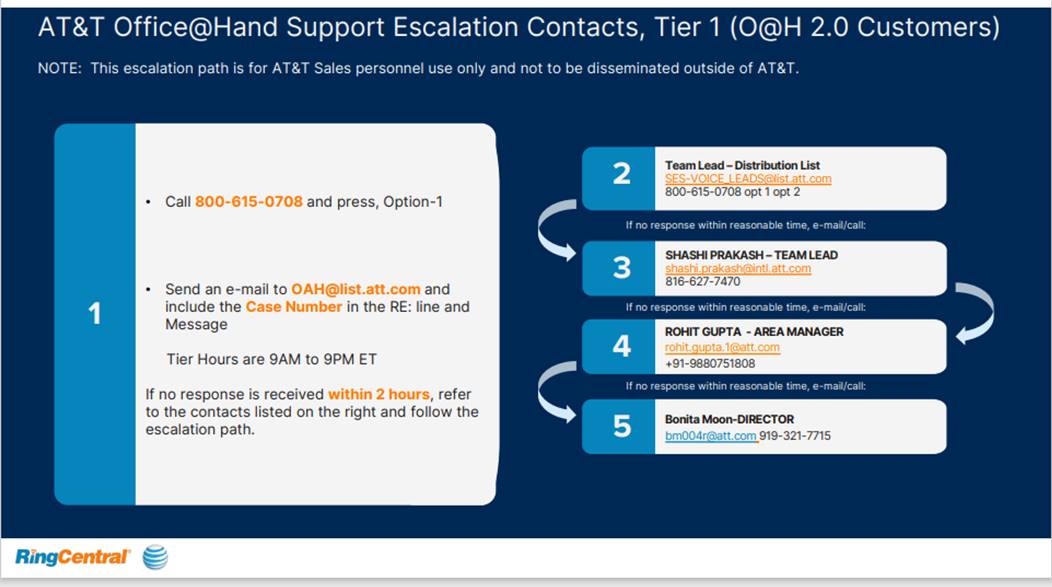
Alternatively, you can open a case in the AT&T Business Center (separate login than the O@H admin site), then escalate following the tiers below if you do not receive a timely response.

Was this article helpful?
That’s Great!
Thank you for your feedback
Sorry! We couldn't be helpful
Thank you for your feedback
Feedback sent
We appreciate your effort and will try to fix the article