Occasionally, a user may see this error in Cleartouch when attempting to load a standalone doc. Example:
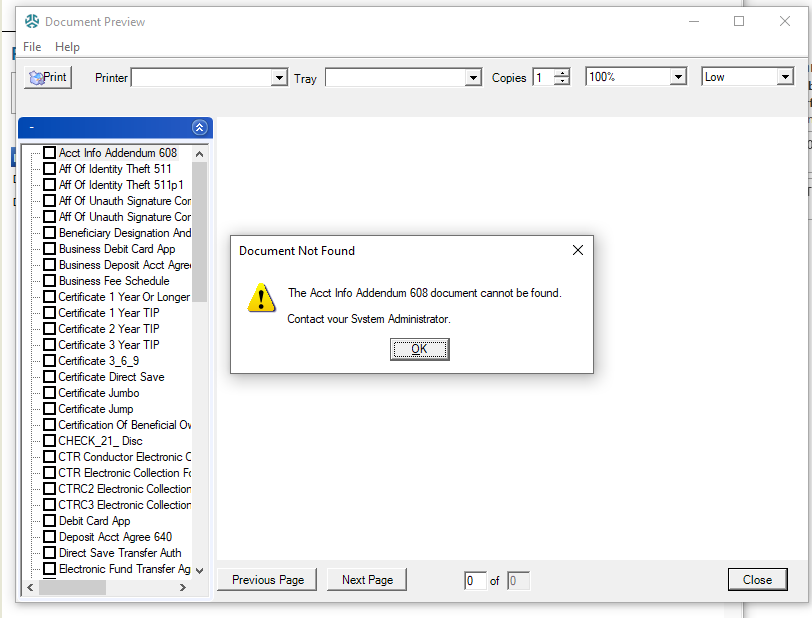
This usually means that the document cannot be found in the user's C:\Cleartouch3\Documents directory.
Short-term/quick fix: On the employee's computer, check C:\Cleartouch3\Documents. There should be MANY documents in this directory. If not, that can cause this error message.
Quick remedy is to copy* all the current docs from the CT server (e.g. for FFL: \\wclect01\Updates\Documents) to the workstation's Documents folder. Alternatively, check another PC in the same branch/department to copy over the necessary documents.
*Due to the network segmentation, you will need to launch File Explorer through RDWeb, or simply RDP into the CT server to copy the files from there to the user's PC via UNC (File Explorer). Attempts to UNC directly from your computer to another employee's will fail.
Verify that the user has the correct access to the Distribution File Share path. This path can be found in Cleartouch --> Tools --> Pending Updates. It should show that the user "has access" on that screen.
Was this article helpful?
That’s Great!
Thank you for your feedback
Sorry! We couldn't be helpful
Thank you for your feedback
Feedback sent
We appreciate your effort and will try to fix the article