Cleartouch is included on the standard computer image. The program runs from C:\Cleartouch3. Each workstation must be registered separately. To re-register a workstation to a different license, you must first delete the ctInstanceRegistration.config file from the Cleartouch3 folder. To register a workstation, you need to know the Fiserv IP address designated for the workstation. The Fiserv IP address can be located in the network matrix Excel workbook (currently stored in Teams: Fiserv Support team --> General channel --> Files tab --> Master Network Lists folder).
Steps to Register Cleartouch
1. Make sure ctInstanceRegistration.config is deleted or renamed
2. Start Cleartouch by double-clicking on the Cleartouch shortcut (this can be found as an icon directly on the desktop or in the Applications folder on the desktop. If a shortcut is not yet there, create one from the Fiserv.Cleartouch.Desktop.Startup.Bootstrap.exe in the Cleartouch3 folder).
3. The Portal Instance Configuration window appears:
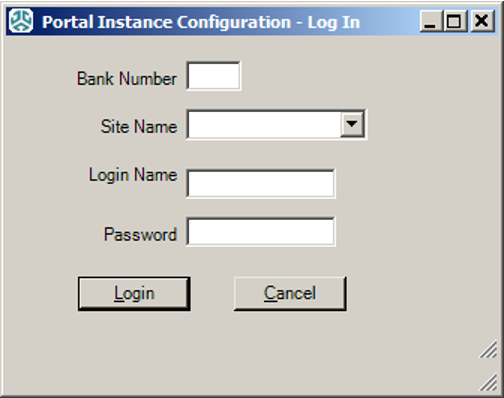
4. Complete the boxes and click Login
a. Bank Number and Site Name specific to the institution (e.g. FFL is 110 Diamond)
b. Login name and Password is your (admin) main Cleartouch login (not the end user's CT login credentials)
5. The Station Assignment window appears:
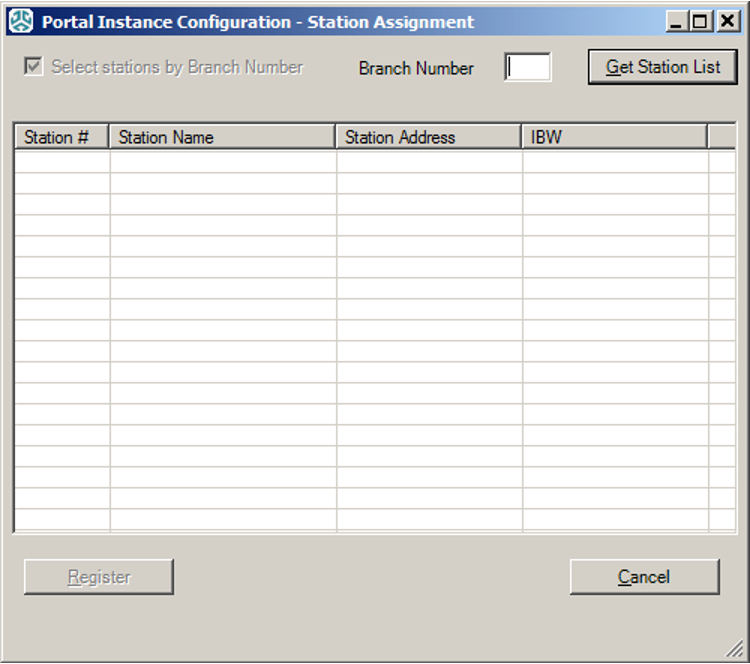
6. Enter the branch number (found in the network matrix workbook) and click "Get Station List"
7. Select the workstation that matches the matrix (verify it is the one with the correct Fiserv IP address, as there may be multiple instances of the same workstation name listed) and click Register.
8. You can verify connectivity by logging in at the main Cleartouch screen.
ALTERNATE METHOD for RE-REGISTERING:
For an easier way to re-register Cleartouch on an existing workstation that already has CT registered, follow the steps below. This method is handy for testing purposes when you want to temporarily switch a user to a different CT license for a brief period.
1. In the existing instance of Cleartouch on the user's workstation, go to Tools --> Workstation Information and take a screenshot to save this info for easy reference later.
2. In Tasks --> Cleartouch Administration --> Update Workstation Assignments, search the bank and branch of the license to which you want to switch the user, then click Set Station.
3. Have the user restart CT and verify the new workstation assignment is set in Tools --> Workstation Information.
4. If testing, when done, repeat Steps 2 and 3 to revert to the user's original CT license.
Was this article helpful?
That’s Great!
Thank you for your feedback
Sorry! We couldn't be helpful
Thank you for your feedback
Feedback sent
We appreciate your effort and will try to fix the article